Generating Pains and User Stories
Overview
This tutorial guides you through the straightforward process of generating pains and user stories for each user persona you find compelling. A couple of clicks are all you need, and our Generative AI takes care of the rest.
How to Generate Pains and User Stories
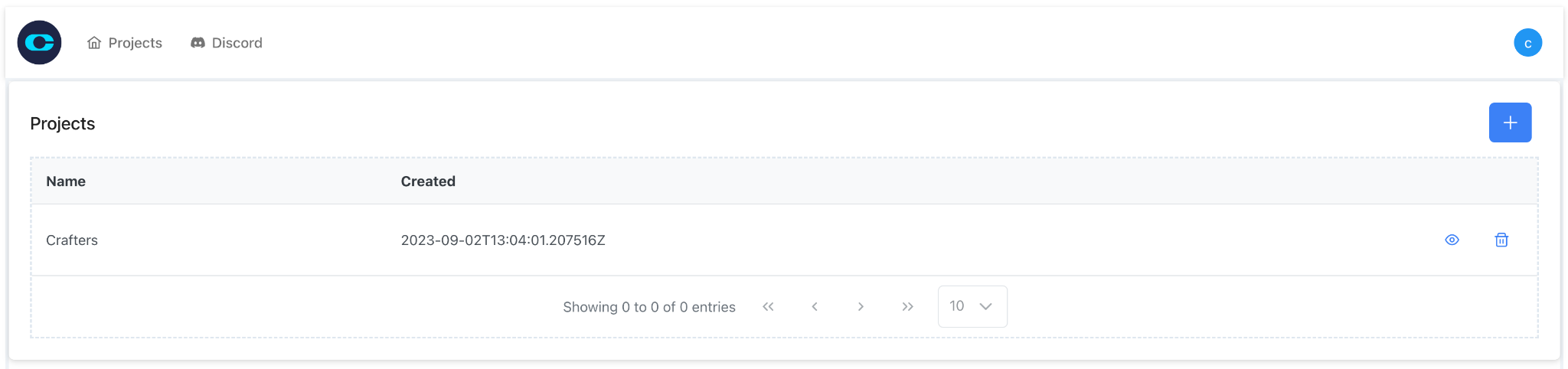
Step 1: Navigate to Your Project Dashboard
After logging in, head over to your project dashboard where you'll see a list of all your created projects. Click on the project for which you wish to generate pains and user stories.
Step 2: Go to the User Persona Tab
Inside your selected project, locate and click on the "User Personas" tab to navigate to the section containing user persona cards.
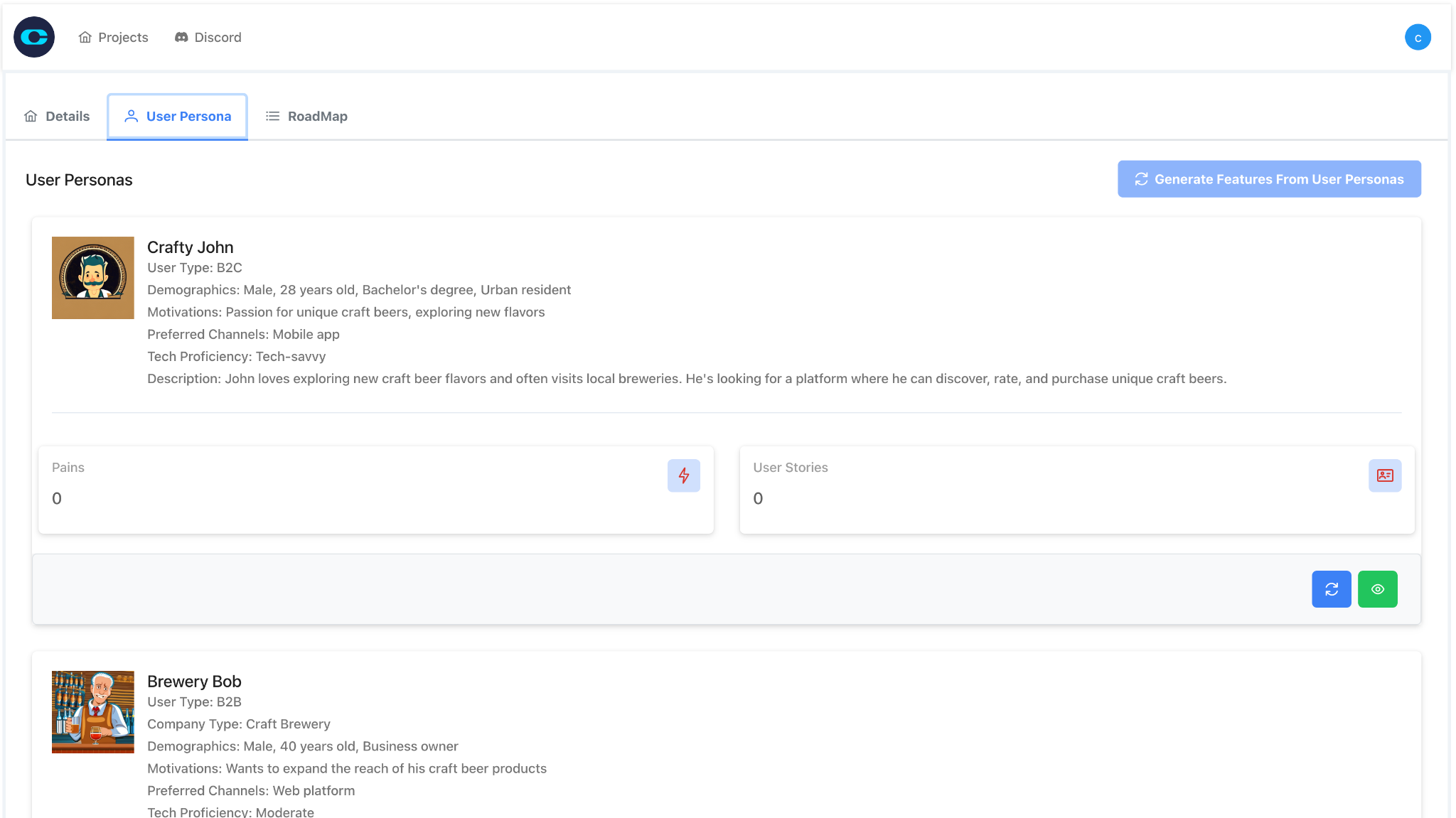
Step 3: Locate the User Persona Cards
In the "User Personas" section, you'll find cards for each generated user persona. These cards contain basic information about the persona and two buttons: "Send to AI for Analysis" (in blue) and "Detailed View" (in green).
Step 4: Click the "Send to AI for Analysis" Button
Find the user persona that interests you and click the blue "Send to AI for Analysis" button on their card. This action will initiate the Generative AI process to create pains and user stories tailored for that persona.
Step 5: Wait a Few Seconds
The generation process takes a few seconds. You'll see a loading indicator during this brief period.
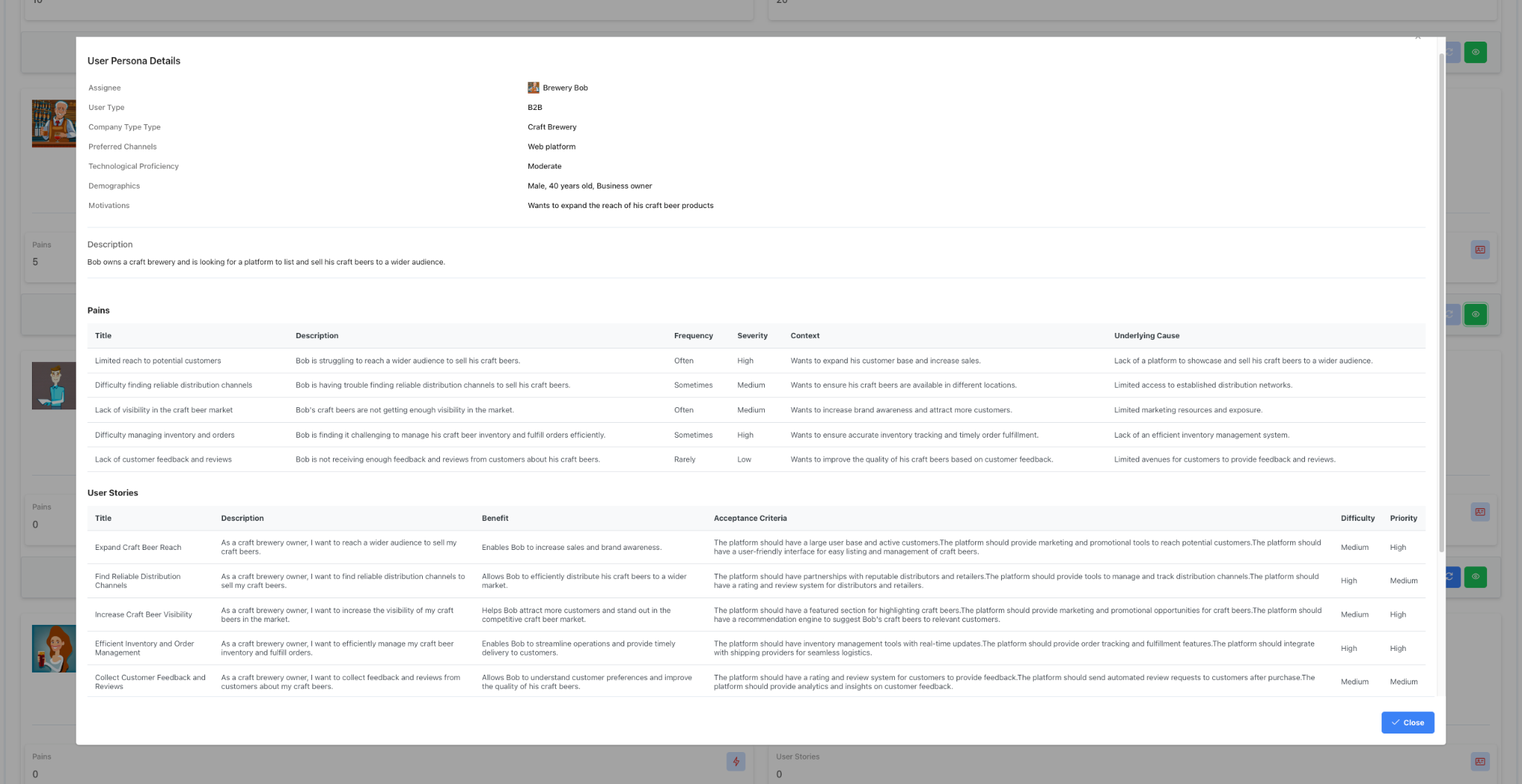
Step 6: View Generated Pains and User Stories
Once the generation is complete, you can click the green "Detailed View" button on the user persona card to view the generated pains and user stories.
- The generation process is quick but may vary depending on server load.
- You can repeat these steps for multiple user personas within the same project.